CAUTION: These instructions are for only temporarily overriding the switch.
The picture shows the screen as it appears when the distraction will not function due to a missing or faulty Patient Stop Switch. Note the explanation "Patient Cancelled" in the center of the screen.
1. There is an invisible button below and slightly to the right of the "E" in "FORCE". Press it.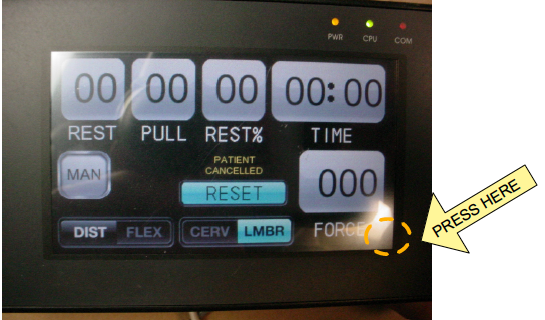
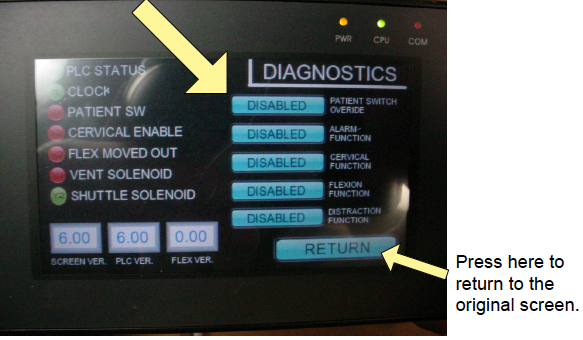
- Patient Switch is the first function on the list. Press the "DISABLED" button alongside that function to Enable it.
- Press "RETURN" at the lower right to begin using your table.
4. If the "Patient Cancelled" message still appears on the screen after powering up the table again then call Hill Laboratories to inquire about getting a new Click PLC.
IMPORTANT: Replace the switch and then follow these same instructions to "Enable" the Patient Switch function as soon as possible.